How to Prepare an Old Laptop or Desktop for Sale
Check the specs, describe the battery honestly and show what is included. Prepare your files and accounts before arranging a local laptop or desktop sale.

Content Writer
Before selling an old laptop or desktop, check the exact model, processor, RAM, storage and current condition. State what you have observed about the battery and which parts the price includes. Compare similar asking prices, back up and check your files, follow the maker’s account-removal and erasure instructions, and arrange a demonstration before collection. A non-working computer can still contain your data.
Upgraded your laptop and kept the old one “just in case”? It may still suit someone looking for a study or work computer. Help them judge it with the exact specification, real photos and a clear account of how it works.
If you want to sell an old laptop, desktop PC, monitor or computer accessories online, the listing should not just say "good condition". Buyers compare processor, RAM, storage, battery backup, screen condition and charger availability before they message.
This guide explains how to sell your used laptop or computer locally, how to write the right specs, how to price it, what photos to add and how to hand it over safely.
Make time for a local inspection#
Arrange a place with power and enough time to show the computer. A photo of it switched on cannot show whether every key, port or charger works. Ask what the buyer wants to check before the visit, then agree a sensible demonstration without exposing your personal files.
Keep the charger and included parts ready, explain known faults and agree collection and payment. If you need a fuller inspection checklist, use the used laptop and desktop buying guide.
List your laptop or computer on Zutilo with photos, your asking price and pickup area. Free posting is available within category allowances. Check the current allowances and listing charges; any applicable charge appears during posting before payment. Optional promotions cost extra.
What laptop details buyers care about#
A buyer needs to know which computer this is and what comes with it. Check the model label and the computer’s built-in system information for the exact processor, RAM and storage. If a detail is unclear, confirm it rather than guessing from another ad for the same brand.
Add these details:
- Brand and model, such as Dell, HP, Lenovo, Acer, Asus, Apple or assembled PC.
- Exact processor model and generation, rather than only “i5” or “Ryzen 5”. Give the Apple chip name for a Mac.
- RAM, such as 4GB, 8GB or 16GB.
- Storage type and size, such as 256GB SSD, 512GB SSD or 1TB HDD.
- Battery behaviour you have actually observed, including whether it works only with the charger connected.
- Screen size and screen condition.
- Whether a charger is included, and whether it is the original or a replacement.
- Keyboard, trackpad, webcam, speaker and port condition.
- Any repair history, heating issue, slow performance or body damage.
For a desktop, list the processor, RAM, drives and graphics card where fitted. Say whether the price covers just the cabinet or also the monitor, keyboard, mouse and UPS. If parts have separate prices, make that clear. A monitor appearing in a photo should not leave the buyer guessing whether it comes with the deal.
Write a battery note someone can understand#
If you checked battery runtime, say what you were doing and when you checked it. Browsing, a video call and heavier work can use the battery differently. The last time you tested it is useful context, not a promise that a buyer will get the same hours.
If you only use the laptop while plugged in, say so. Mention unexpected shutdowns or charging problems. If you have not checked runtime recently, “runtime not checked” is more useful than an unsupported “excellent battery”.
Back up and prepare the computer#
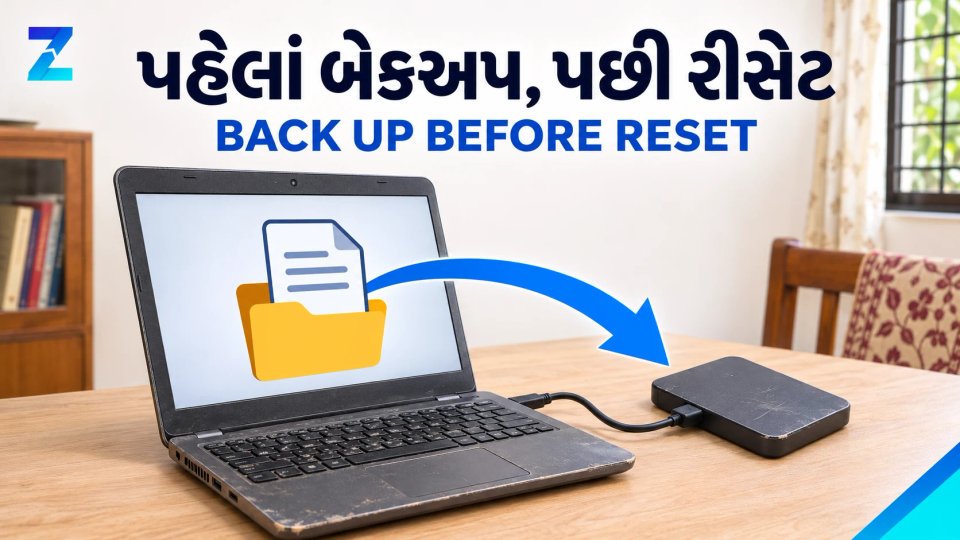
First, back up the files you want to keep and check that they open somewhere else. Save the model and specification details for your ad. Set aside the charger and included accessories, record faults and clean the computer carefully. Arrange how you will demonstrate it after removing your accounts and personal data; do not leave this until the buyer is about to take it.
For Windows, follow Microsoft’s reset instructions. For a sale, Microsoft recommends Remove everything with Clean data enabled. This consumer option is not a certified erasure method for sensitive business data.
For a Mac, use Apple’s before-selling instructions. The right steps depend on the model and macOS version. Follow its account and erasure steps, then leave the computer ready for its new owner.
Deleting a folder or signing out of a browser does not prepare every drive for a new owner. Get suitable help if you are unsure about erasing the computer or an extra internal drive. Remove memory cards and external drives you are keeping. An employer-owned or managed computer needs the employer’s permission and proper release from its management before a sale.
Photos that show condition#
Take clear daylight photos that show the actual condition, without heavy filters. Photos help a buyer spot wear; they do not prove that every part works. For framing and a simple photo order, see how to photograph used items.
Useful photos include:
- Laptop open with screen turned on.
- Keyboard and trackpad close-up.
- Left and right side ports.
- Top body and bottom body.
- Charger and accessories.
- Model label or system information screen.
- Any scratch, dent, hinge issue or screen mark.
For desktops, show the cabinet, monitor display, keyboard, mouse and rear ports. You do not need to open the case for photos. Crop account names, licence keys, serial numbers and private documents from any system information image.
How to price an old laptop#
Laptop resale value depends on demand, brand, generation and condition. Compare the processor generation, RAM, storage, battery and included charger before deciding how your computer compares with another listing. Asking prices are not confirmed sale prices.
When comparing similar computers, account for these differences:
- Recent model with bill and good battery: Compare the same configuration and condition
- Older model working well: Consider processor generation, support, storage and observed battery backup
- HDD storage or a weak battery: Compare with similarly equipped computers and disclose the limitation; do not assume an untested upgrade will solve it.
- Screen, keyboard or heating issue: Describe what happens. If you do not know the repair cost, do not call it a cheap or minor repair.
- Desktop cabinet without a monitor: Compare the same bundle, not a complete setup with accessories.
Do not price only from original MRP. Compare current used listings in laptops and computers, then adjust for brand, RAM, SSD, battery and physical condition.
For broader pricing habits, read how to price second hand items.
Good listing title examples#
Include the model, useful specifications and your city so someone can recognise what you are offering.
These illustrate the format; use only your own computer’s verified details:
- Dell Latitude 5400 i5-8265U, 8GB RAM, 256GB SSD - Rajkot
- HP [exact model], [processor], [RAM], [SSD or HDD] - [your actual area]
- Lenovo ThinkPad [exact model], [processor], 16GB RAM - [your actual area]
- Assembled Desktop PC With Monitor and Keyboard
- Apple MacBook Air M1 With Original Charger
Avoid vague titles like "urgent laptop sale", "best laptop" or "very good computer". They do not tell the buyer enough.
Description template you can use#
This is an illustrative format, not a real offer. Replace every detail with your own information. For the battery, enter only what you have observed; if you have not checked it, say that instead.
Brand and model: Dell Latitude 5400
Processor: Intel Core i5-8265U
RAM: 8GB
Storage: 256GB SSD
Battery: [what you last observed, the task and date checked; or “runtime not checked”]
Condition: Working well, small scratch on lid
Accessories: Original charger included
Reason for selling: Upgraded to new laptop
Location: Rajkot City
Price: ₹[your asking price]; [fixed or open to negotiation]
Keep the specification and known faults together so the buyer can decide whether to arrange a visit. For more help with the wording, use the ad-writing guide.
Post the details when the computer is ready#
You can post your laptop or computer ad from Sell Item. Choose the laptop/computer category, add clear photos, write exact specs, set a realistic price and mention your city or pickup area.
Use current laptop and computer ads for asking-price comparisons, or browse electronics listings for related items. Compare the same configuration and included parts. Choose your real city and pickup area in the ad.
Safe handover checklist#
Agree the demonstration before collection, finish the appropriate data-removal process and keep a short note of the agreed amount and included parts. A buyer should not need your account password to use the computer.
Before handover:
- Follow the maker’s account-removal instructions and check that the new owner will not need your old login.
- Remove memory cards or external drives.
- Confirm payment before giving the device.
- Agree a test of the screen, keyboard, trackpad, webcam, sound, Wi-Fi, charger and ports.
- Do not click unknown payment links.
- Do not scan a QR code to receive money.
- Choose a suitable meeting place with power for testing, and keep another person informed.
For more safety basics, read the safe local meeting guide.
Should you sell for parts?#
You can describe a non-working laptop or desktop as being for repair or parts, with the faults you know. Say what you could test and what remains untested. Do not promise that someone will buy it or that a particular part is usable without checking.
Use phrases like:
- Laptop for repair
- Laptop with broken screen
- Laptop without battery backup
- Desktop cabinet for parts
- Monitor works; desktop does not start
A computer that will not start can still contain your files. A repair or parts sale does not remove the need to deal with its storage. If you cannot erase it, get suitable help before handover; discuss retaining a drive with the buyer if needed and state clearly that it is excluded. Do not hand over private data just because the computer is broken.
Ready to list your laptop?#
Mention the real specifications, show the condition and give a buyer time to test. Do not promise a battery duration or software compatibility you have not checked. Say which operating system is installed and let the buyer check whether it meets their needs.
Post your laptop or computer ad with clear photos, an asking price and your pickup area. Free posting is available within the current category allowances. Once collected, mark it sold so other buyers see the right availability.
Looking to sell something?
Reach local buyers with clear photos, condition, price and location. Free posting is available within category allowances; any applicable charge appears during posting.
Sell My LaptopBrowse related listings
Quick shortcutsFrequently Asked Questions
4 questionsAdd the exact processor model or generation, along with RAM and storage type. Two i5 laptops can have very different capabilities.
Say whether it works only while connected to the charger, if that is what you observed, and disclose other faults. State whether the charger is included. A clear description lets someone decide whether to enquire; it does not guarantee a buyer or a price.
Use the maker’s appropriate account-removal and erasure process after checking your backup. Simply deleting files is not a reliable preparation for a new owner. Get technical help if you are unsure about internal drives or sensitive data.
Agree time to check the display, keyboard, trackpad, webcam, sound, Wi-Fi, charger and ports. Describe the battery performance you actually observed rather than promising a fixed duration.